HMK Tools logoHMK Tools

Explore

ToolboxAll 28 add-ins, by categoryPilot AIChat in the app, or over MCPDownloadOne installer, all four hostsDocumentationHow to use it, step by stepTry the whole suite30 days, every tool, no card.Start free trial

AI & MCP

Revit MCPConnect your LLM to RevitAutoCAD & Civil 3D MCPDrive drawings from your LLMNavisworks MCPClash and 4D from your LLMCompare MCP optionsHow HMK stacks up against the restAI in RevitA practical guide
PricingContact
EnglishTürkçeDeutschEspañol
Sign inStart free trial
Documentation
Start here
  • Getting started
  • Connect your AI client
  • How to ask
By product
  • Revit
  • AutoCAD & Civil 3D
  • Navisworks
When it goes wrong
  • Troubleshooting
Looking for what a specific tool does? The toolbox lists every one of them.
By product

AutoCAD & Civil 3D

136 actions across AutoCAD 2021–2027 and Civil 3D 2021–2027. The Civil tools appear automatically when the add-in is running inside Civil 3D; in plain AutoCAD you get the AutoCAD set.

AutoCAD — 83 actions

  • Drawing context & query12
  • Geometry creation8
  • Modification11
  • Layers8
  • Blocks, attributes & data12
  • Text & dimensions11
  • Layouts, plotting & export7
  • Drawing management6
  • Dynamo7
  • Code execution1

Civil 3D — 53 more

  • Surfaces10
  • Alignments6
  • Profiles6
  • COGO points6
  • Corridors5
  • Pipe networks5
  • Labels & styles4
  • Feature lines3
  • Sites & parcels3
  • Sample lines2
  • Project context2
  • Code execution1

Full descriptions are in the toolbox entry.

Walkthrough: layer and standards cleanup

A drawing that came from outside your office almost never matches your layer standard. Start by seeing what you actually have:

“List every layer with how many objects are on it, and flag the empty ones.”

Then act on the answer — rename to your standard, merge duplicates, set colours and line weights, freeze what you do not need. Because it works on the open drawing, you can watch it happen.

Walkthrough: text and attribute edits at scale

Find-and-replace across text, mtext and block attributes is one of those jobs that is trivial for ten objects and miserable for a thousand.

“Replace ‘REV A’ with ‘REV B’ in every titleblock attribute across all layouts, and tell me how many you changed.”

Walkthrough: a surface and a profile

In Civil 3D the assistant can build the objects, not just report on them.

“Create a TIN surface from the points on layer TOPO, then create an alignment from the polyline I have selected and cut a surface profile along it.”
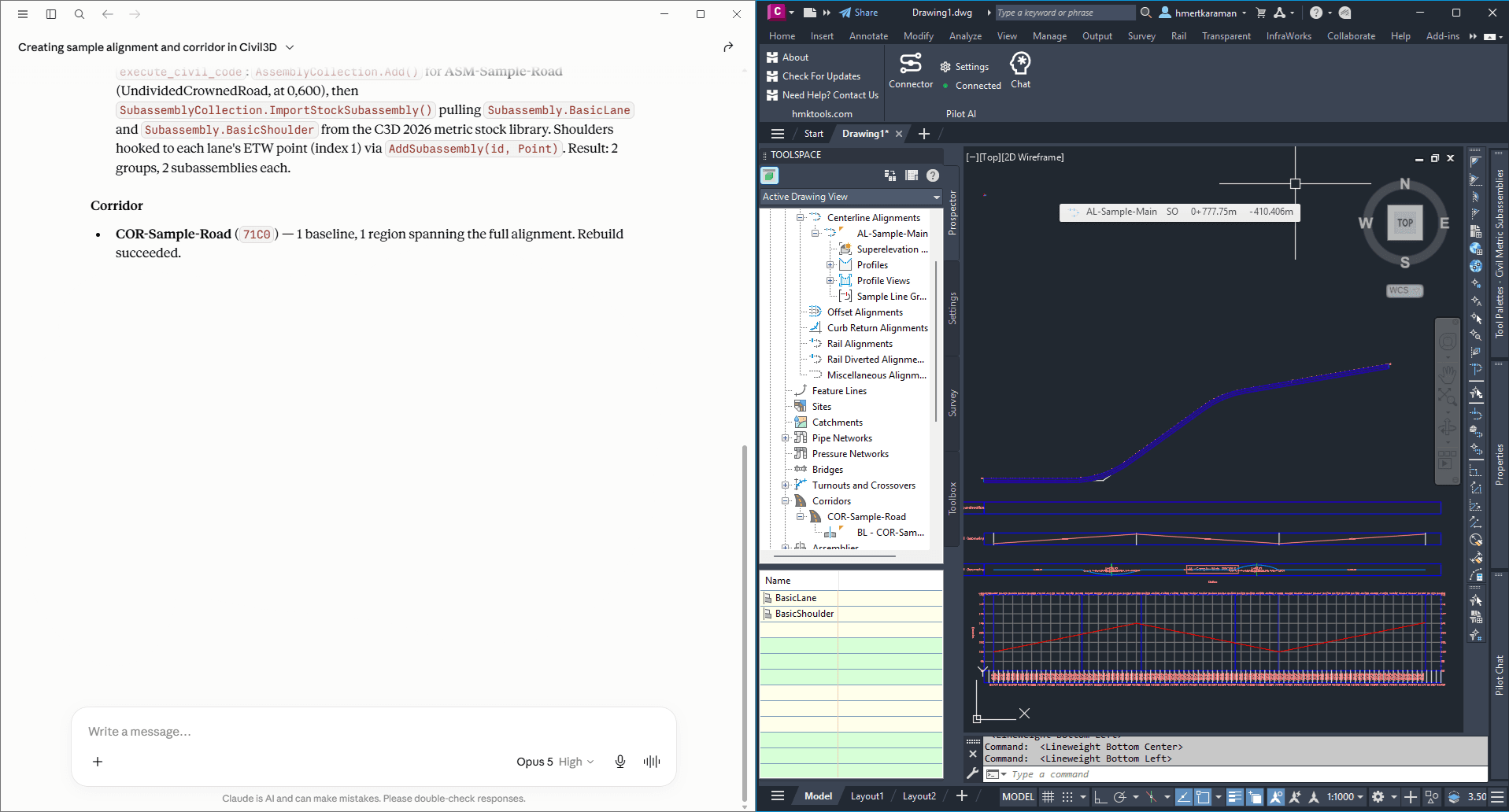
A Civil 3D corridor produced from a conversation with the assistant.
Civil 3D output driven from the chat panel — the objects are real Civil objects, not a drawing of them.
Corridors need an assembly first
A corridor cannot be built without an assembly to apply, so create or name the assembly before asking for the corridor. If you ask without one, the assistant will tell you rather than build something empty.

Walkthrough: plotting

Layout and plot work is well covered — list layouts, set the current one, and plot to PDF.

“Plot every layout except the model tab to a single PDF in this folder, using our A1 page setup.”

Which host am I in?
Ask “what can you do here?” and the answer differs between AutoCAD and Civil 3D — that is the fastest way to confirm the Civil tools are live in the session you are in.
HMK Tools logoHMK Tools

AI-powered add-ins for Revit, AutoCAD, Civil 3D & Navisworks.

Product

  • Toolbox
  • Pilot AI
  • Download
  • Autodesk App Store

AI & MCP

  • Revit MCP
  • AutoCAD & Civil 3D MCP
  • Navisworks MCP

Resources

  • Documentation
  • AI in Revit
  • Changelog

Company

  • Contact
  • Pricing
  • Start free trial
  • Sign in
  • info@hmktools.com

© 2026 HMK Tools. All rights reserved.

PrivacyTermsRefundsFor Revit, AutoCAD, Civil 3D & Navisworks