Revit
102 actions inside the model you have open, in Revit 2023 through 2027. Everything below works the same whether you drive it from the docked chat panel or from your own AI client.
What it can reach
| Project & model information | 29 | Levels, phases, links, worksets, views, sheets, warnings, material take-off, parameter and duplicate-type audits. |
| Elements & parameters | 23 | Find by category or parameter value, bulk-set, find-and-replace inside values, copy between parameters, move, rotate, mirror, array. |
| Views, sheets & content | 32 | Create views, sections, callouts and drafting views, place them on sheets, create schedules and view filters, place families, walls and columns. |
| Annotation & tagging | 6 | Tag all in view, tag rooms, find untagged elements, dimensions, text notes. |
| MEP | 3 | Ducts, pipes and systems. |
| Export & interoperability | 3 | Documents, IFC, schedules to Excel. |
| Dynamo | 6 | Open, author, inspect and run graphs from the conversation. |
The full list, one line each, is in the toolbox entry.
Walkthrough: parameter cleanup
The job everybody has: a parameter that was filled in inconsistently across a few hundred elements.
“Find every wall where Fire Rating is empty or says ‘N/A’, and list them by level.”
You get a count and a breakdown. Now you know the size of the problem before you touch it — and the assistant is holding the set, so the next message can act on exactly those elements:
“Set Fire Rating to 60 on the ones on Level 1 and Level 2.”
It reports how many changed and which failed. The whole edit is one transaction, so a single Ctrl+Z reverses it.
Walkthrough: sheets and views
Batch documentation is where the clicking really adds up.
“Create a sheet for each level using the A1 titleblock, name them ‘{Level} — General Arrangement’, and place the matching floor plan on each one.”
Sheets, viewports and placement in one pass. Ask it to renumber afterwards if the numbering needs to follow your standard rather than creation order.
Walkthrough: audits and warnings
Warnings are the model’s own to-do list, and nobody reads 4,000 of them. Ask for the shape instead of the list:
“Group the warnings by type and show me the five biggest, with counts.”
Then take them one at a time. Several warning types can be resolved directly — ask it to fix a specific group and it will tell you what it could and could not do. Pair it with the duplicate-type and parameter audits before a milestone issue.
Walkthrough: driving Dynamo
If you already live in Dynamo, the assistant can open a graph, read its nodes, author new ones and run it — so a graph you would have built by hand becomes a sentence.
“Open my Rebar Tagger graph, tell me what inputs it expects, then run it against the current view.”
Choosing what it can touch
Settings → Tools lists all 102 with a checkbox each, and a Read-Only column that tells you which of them can change the model. Turning a tool off hides it from the assistant entirely.
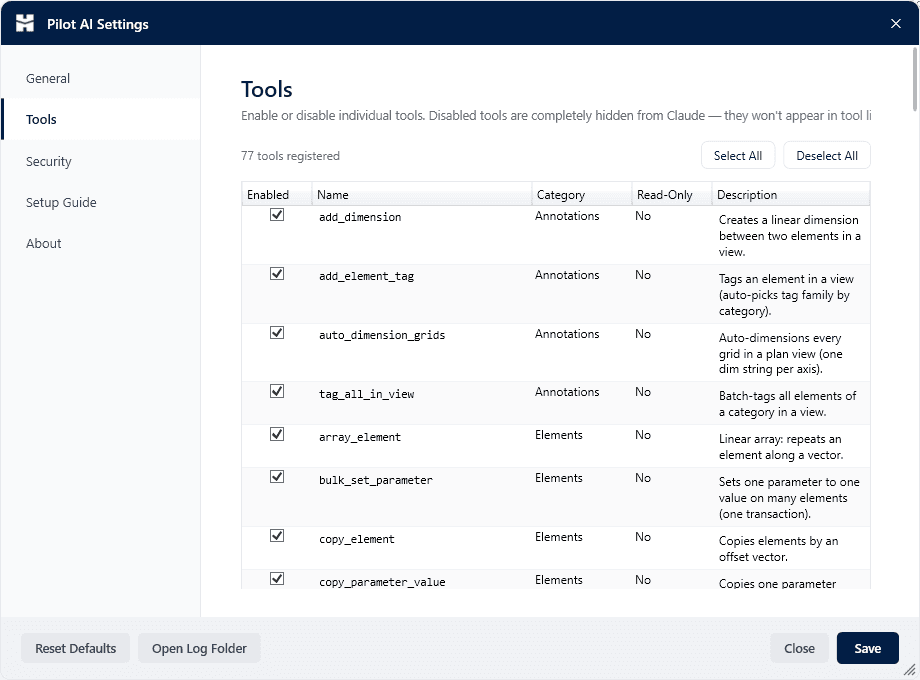
Leaving the read-only tools on and switching the writers off gives you an assistant that answers anything about the model and edits none of it — see controlling what it can do.